Want to add a new customer to your CRM? Here’s how:
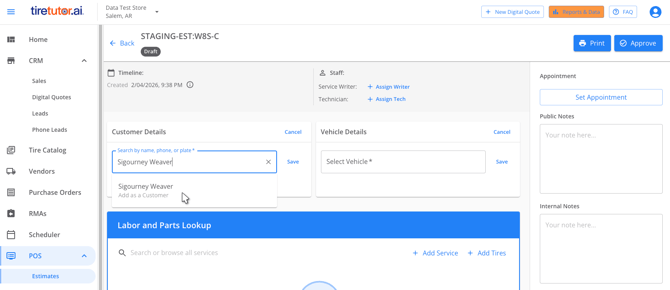
Start by creating a new estimate or work order. You’ll see a “Customer Details” section—go ahead and click into it. Begin typing your customer’s name, and you’ll see an option to “Add as a Customer”. Click that.
Now just fill in their basic info: name, phone number, and email address. You’ll also get to decide whether they should automatically receive Google review requests. Once you’re happy with everything, hit “Save” and you’re all set—your customer is now in the system!
Step-by-step Process:
1. Create a new estimate or work order.
2. Click into the “Customer Details” section.
3. Enter the customer’s name.
4. Click “Add as a Customer”.
5. Fill in the remaining data, telephone number, and email address.
6. Choose whether the customer should receive Google review requests by default.
7. Click “Save” to save the customer record to the system.