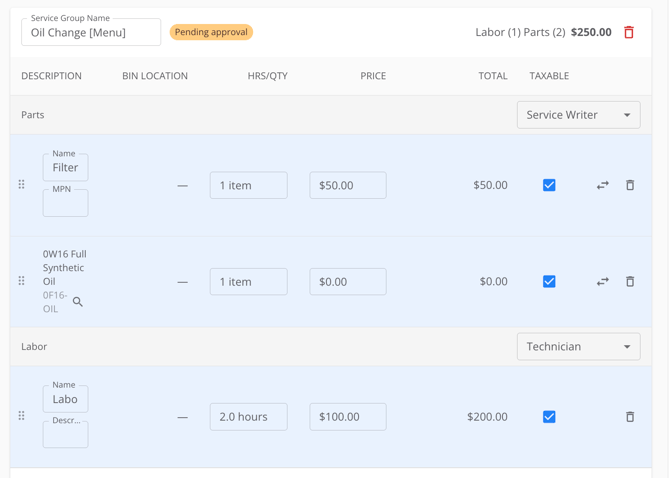
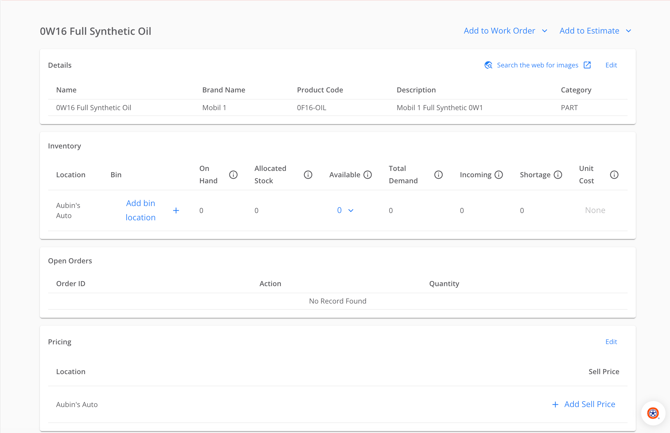
Go to Inventory and search for the item you want to add — an oil filter, a set of brake pads, a TPMS sensor, a case of 0W16 full synthetic oil. Open the item to get to its page, which is where the add-to-order options live.
If you're looking for tires, use the Tire Catalog instead: it searches by fitment, handles different front and rear sizes, and lets you filter by distributor. Inventory is built to hold your stock; the Tire Catalog is built to find tires.
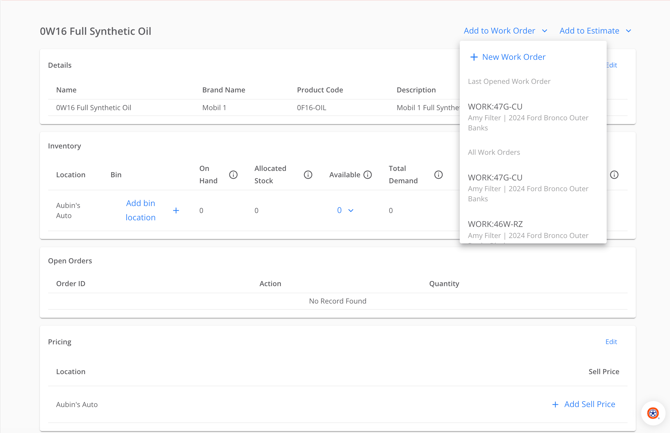
On the item page, open the Add to Work Order dropdown. You'll see New, Last Opened, and every open work order for the store you're currently in. Choose the work order you want and the item is added to it.
A confirmation appears with a link straight to that order, so you can jump to it and keep building the job, or stay in Inventory and add something else.
Step 3: Starting a New Work Order or Estimate from Inventory
If the job doesn't exist yet, choose New in either dropdown. The system creates the work order or estimate and puts the item on it in one step, then gives you a link to the new order.
A work order you create this way behaves like any other. The next time you open the Add to Work Order dropdown, it appears in the list of open orders, so a second part can go onto the same job.
Step 4: Knowing Where the Item Lands on the OrderEach item you add from Inventory arrives in its own service group on the order. The group is named after the item's category: tires go into a group called Tires, and everything else goes into a group called Parts.
This is worth knowing before you add several things at once. If you add three parts one at a time from Inventory, you'll see three separate groups on the order rather than one group holding all three. The line itself carries the item's name, price, and quantity from your inventory record. Use the drag and drop funtionality to move the item into the relevant service.
How it appears when you first move the part into the work order:
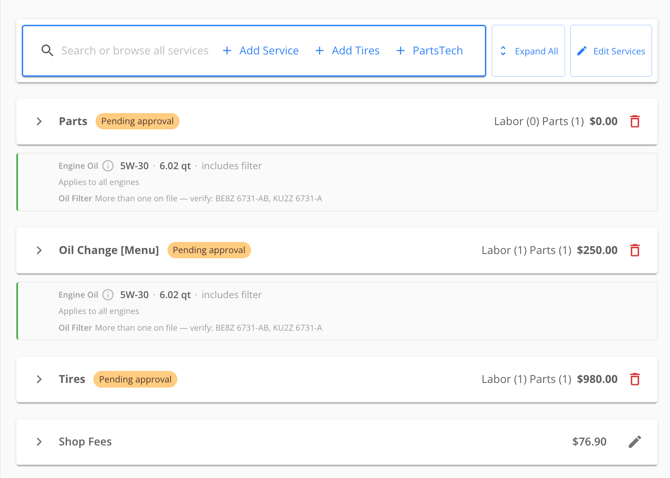
Click "edit services" and use the drag and drop functionality to move the part into the oil change service: