
Step 1: Adding Services to an Estimate
Open an estimate and add the services you're quoting, the same way you always have. Each service you add appears as its own line with an approval label next to it. A newly added service starts as Pending Approval, which means you haven't recorded the customer's answer yet.
You can also record approvals on a work order rather than an estimate. Approval labels appear in both places, so you're not required to start from an estimate. Starting from an estimate is the recommended path, because the approvals you record there carry forward automatically when the estimate becomes a work order.
.png?width=670&height=413&name=Random%20Mocks%20(12).png)
Step 2: Recording an Approval or a Decline
Click the approval label on the service you want to record. An authorization dialog opens.
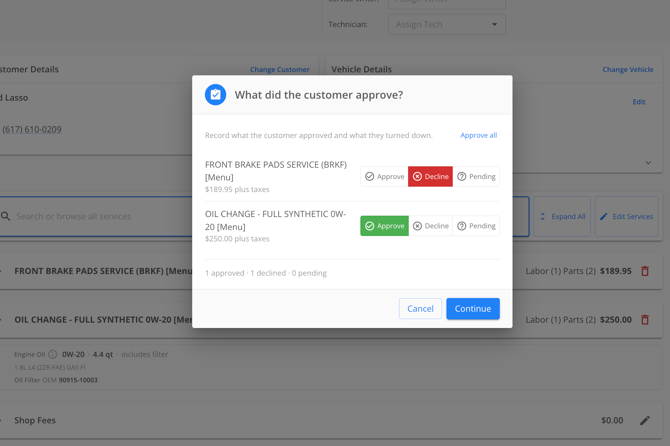
In the dialog, select whether the customer approved or declined that service, choose the channel the customer used to tell you — for example, a phone call, a text message, an email, or a conversation over the counter — and set the date the customer gave you their answer. If the customer approved the work yesterday and you're only entering it now, change the date to yesterday so the record reflects what actually happened.
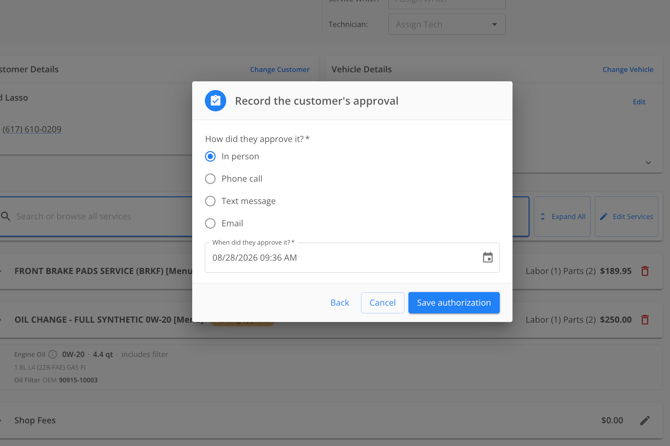
Click to save the authorization. The service's label updates to show its new status.
You can record different answers for different services on the same estimate. A customer who approves the four tires but declines the alignment gets one service marked approved and the other marked declined.
Step 3: Leaving a Service Pending
If a customer hasn't given you an answer yet, leave the service as Pending Approval. The system does not require you to record a decision on every line before you continue working. Pending is a real state, not an error — use it for the jobs you're still waiting to hear back on.
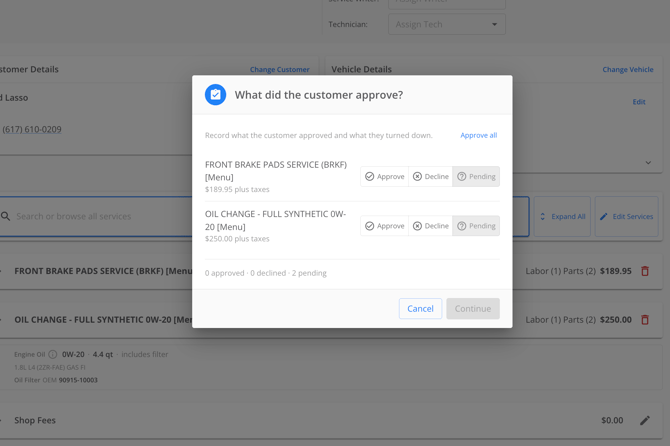
Step 4: Converting an Estimate into a Work Order
Convert the estimate to a work order as you normally would. Every approval and decline you recorded on the estimate carries over to the work order, so you don't re-enter anything.
You can still change a decision on the work order. If a customer calls back and approves the alignment they declined this morning, click the approval label on that service, record the approval, and save. The service moves from declined to approved.
Step 5: Adding a New Service Mid-Job
If you find additional work once the vehicle is on the lift, add the service to the work order. The new service comes in as Pending Approval rather than inheriting the approvals already on the job. Contact the customer, then click the approval label on the new service and record their answer with the date and channel.
Step 6: Reviewing the Authorization History
Every time you save an authorization, TireTutor stores it as a new record rather than overwriting the previous one. A service that was declined in the morning and approved in the afternoon has both entries on file.
This history is kept for your protection if a customer's account is ever disputed. It is not displayed in the interface today, so if you need the full authorization history for a specific job, contact your customer success representative.
Step 7: Printing the Work Order or Invoice
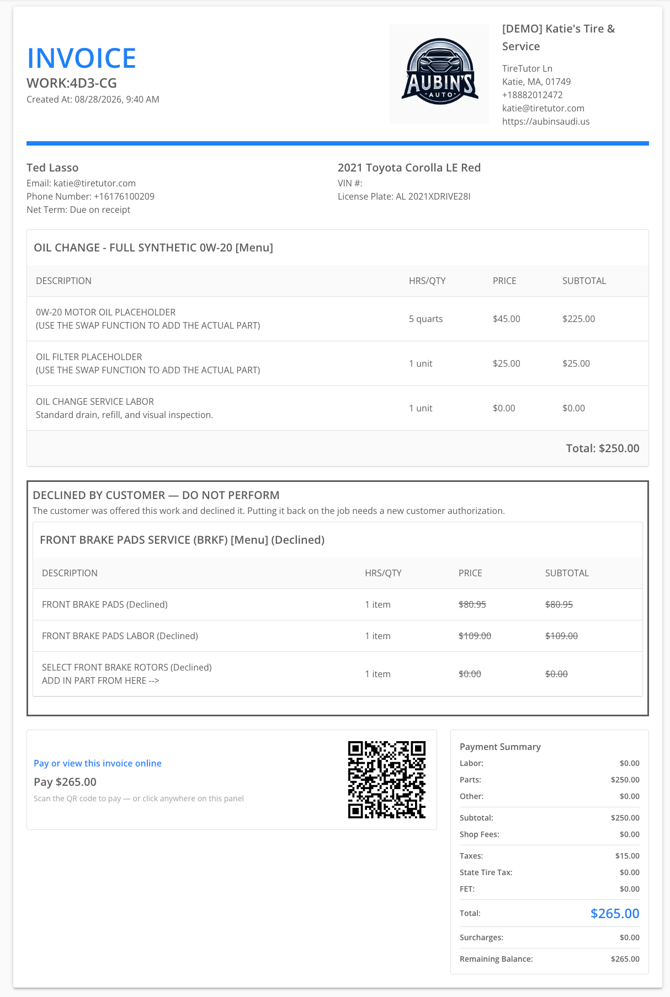
Print the work order or the invoice. Declined services appear in their own section, struck through and clearly labeled as declined by the customer, so anyone reading the document can see the work was offered and turned down. The same section appears on the copy your customer receives.
Have the customer sign the printed document. The signature confirms both the work being performed and the work they declined.
Step 8: Understanding How Declines Affect the Total
Declined services are excluded from the estimate or work order total and from the payment summary. A $1,200 job with a $300 alignment declined comes to $900, and the declined line does not carry tax or affect what the customer owes.
Reports built on the payment summary reflect the same figures, so a declined service does not inflate your revenue numbers.