
Step 1: Opening the Disposal Fees Settings Page
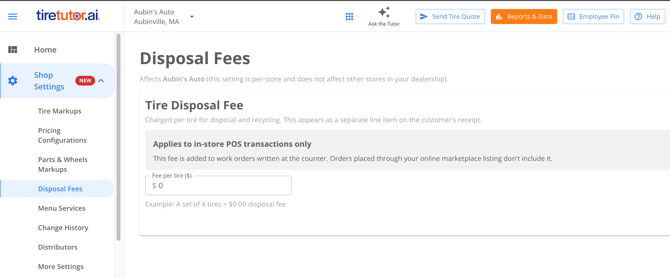
Go to Settings → Markups → Disposal Fees.
If you do not see Disposal Fees listed in your settings, contact your customer success representative to request this feature.
Access to this page depends on your role. Dealer administrators can open it, and store administrators can open it for the stores they administer. If you are signed in as a counter user or service writer, the page will not appear in your settings menu.
Step 2: Deciding Whether a Disposal Fee Is the Right Setting
Use the disposal fee for a charge your shop has chosen to add — typically what your hauler or recycler charges you to take old tires away, which you pass on to the customer.
Do not use the disposal fee for a tire charge your state requires you to collect. Required state tire taxes are set in your state tire tax settings, and that is the only place they should be entered. Entering a state-required amount here instead will not be treated as a tax.
Step 3: Choosing the Store the Fee Applies To
On the Disposal Fees page, confirm which store you are editing before you change the amount, then save each store separately.
Step 4: Entering Your Disposal Fee Amount
On the Disposal Fees page, enter the amount you charge to dispose of one tire and save your changes.
The fee is entered as a per-tire amount, and every store starts at $0.00. If you charge $5.50 to dispose of a tire, enter 5.50, and a customer buying a set of four is charged $22.00 in disposal. The page shows you the total for a set of four as you type, so you can check the number a customer will actually see before you save.
Step 5: Understanding When a Changed Fee Takes Effect
A new disposal fee amount applies to tires added to a work order after you save it. Tires already on an open work order keep the fee that was in effect when they were added.
This means a work order that was started before you changed the fee can carry both amounts — the tires added earlier at the old fee, and any tires added after the change at the new one. If you want the whole job at the new fee, remove the earlier tire lines and add them again.
Step 6: Seeing the Fee on a Work Order
Once a disposal fee is set for a store, adding a tire to a work order at that store adds the disposal fee automatically. You do not need to add it by hand or remember to apply it.
The fee appears as its own line on the work order and on the customer's receipt, rather than being folded into the installation price. A customer who asks what they are paying for can see the disposal charge separately from the tire and the labor.
The disposal fee applies to in-store point-of-sale transactions. It is charged when a tire is added to a work order at your counter.
Step 7: Understanding How the Disposal Fee Is Taxed
Disposal fees are not taxed. When a work order is totaled, the disposal line is excluded from the tax calculation, and the customer pays the disposal amount exactly as you set it.
This is true regardless of the tax rates configured for your store. If a customer buys a set of four tires with a $5.50 disposal fee, the $22.00 in disposal is not taxed, while the tires and the labor are taxed at your configured rates.
Step 8: Removing the Disposal Fee When a Customer Keeps Their Tires
If a customer tells you they want to take their old tires with them, delete the disposal fee line from the estimate or work order before you cash them out. The rest of the job — the tires, the installation, the taxes — is unaffected, and the customer is not charged to dispose of tires your shop is not disposing of.
Deleting the line on one work order does not change your shop's setting. The next work order you write still applies the fee normally.
Step 9: Changing or Turning Off Your Fee Later
To change the amount, return to Settings → Markups → Disposal Fees, enter the new amount for the store you want to change, and save.
To stop charging a disposal fee at a store, set that store's amount to $0.00 and save. Tires added to work orders after that carry no disposal line at all.
You can now set your own tire disposal fee, adjust it as your disposal costs change, and take it off an individual job when a customer keeps their tires — without opening a support request. If a disposal charge at your shop needs to be handled differently from what this page supports, contact your customer success representative.