
How to Send a Contactless Payment Link (Text to Pay)
TireTutor makes it easy to collect payment by sending your customer a secure payment link via text message and email once a work order is complete.
NOTE: AS OF AUGUST, 2026, THE TEXT TO PAY LINK HAS MOVED. You can now access it via the "Send invoice to Customer" button above the "Process Payment" button.
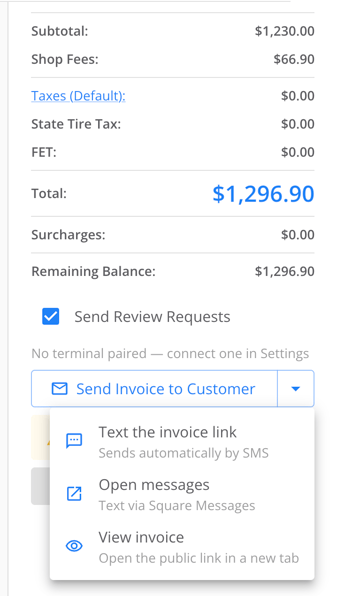
Follow the steps below:
Step 1: Complete the Work Order
-
Open the customer’s Work Order.
-
When everything is finalized, click Mark Complete.
-
Confirm that you’re ready to issue the invoice (note: no further edits can be made once completed).
Step 2: Select “Text to Pay”
-
After marking the work order complete, click on the link below the orange "process payment" button: Finance, Text2Pay, Additional Payment
-
The system will automatically send a secure payment link to:
-
The customer’s email address on file
-
The customer’s mobile number on file
-
You’ll see a confirmation that the message has been successfully sent.
Step 3: Preview or Copy the Payment Link (Optional)
From the work order, you can:
-
Click the payment link to preview exactly what the customer sees
-
Copy the link to paste into a separate email if needed
Step 4: What the Customer Receives
The customer will receive:
An Email
-
Displays your shop name at the top
-
Shows the invoice total
-
Includes a breakdown of services
-
Contains a Pay Invoice button
A Text Message
-
Includes a secure payment link
-
Opens the same payment screen as the email
Customer Payment Options
The secure payment page allows customers to:
-
Pay with Apple Pay
-
Pay with Google Pay
-
Enter credit or debit card
-
Submit an ACH transfer
-
Use Afterpay (if enabled)
Once payment is completed, it will reflect in the work order.
Why Use Contactless Payments?
-
Faster checkout
-
Reduced counter wait times
-
Convenient remote payment
-
Secure digital transaction
-
Fewer phone calls to collect payment
That’s it! Now you can collect payment quickly and securely — without the customer needing to return to the counter.