
Pairing your terminal will allow you to take card payments on your work orders using the terminal. You do it once per device, from Settings in TireTutor plus a few taps on the terminal itself. Which set of steps you need depends on the terminal. A terminal fresh out of the box needs the first set of directions. A terminal you already use with Square needs the second — it won’t work with TireTutor on its existing setup.
Note: a Square terminal isn't required to take payment. If you've just started on the TireTutor.ai Shop Management System, use Text2Pay to take payment while you wait for your terminal to arrive.
Before you start
To generate a code you need both of these:
- Your store mapped to a Square location. Open Settings → Integrations and look at the Square panel. If it reads
Square location: Not set, choose Change location and pick the right one first. A device binds to the store’s Square location, so a code generated without one can’t pair. - Admin permission on the store or its dealer. Without it, Connect Square Terminal is greyed out — ask whoever manages your TireTutor account to grant it, or to generate the code for you. Buy a terminal stays available to everyone.
And for the code to pair, the terminal has to be on your Wi-Fi. That’s the first step of the walkthrough below.
Don’t have a terminal yet? Buy a terminal in the Square panel takes you to Square’s hardware store. Dealers buy their own terminals directly from Square.
Signing in on a new terminal
When: the terminal is new, or has been signed out, and shows Square's sign-in screen.
Keep TireTutor open on a computer or phone next to the terminal. The code expires in about five minutes, and you’ll be moving between the two screens.
- On the terminal, get on your Wi-Fi first:
Tap the gear icon at the bottom right, beside Sign in — it isn’t labelled. Choose Network, pick your Wi-Fi, then tap the back arrow at the top left. A terminal that isn’t on the network can’t reach Square to redeem the code. -
In TireTutor, open the Square panel: Go to Settings → Integrations and find the Square panel.
-
Choose Connect Square Terminal: A dialog opens and generates a device code for you. The code sits inside a ring that drains as the clock runs down, and the chip below it counts the time left.
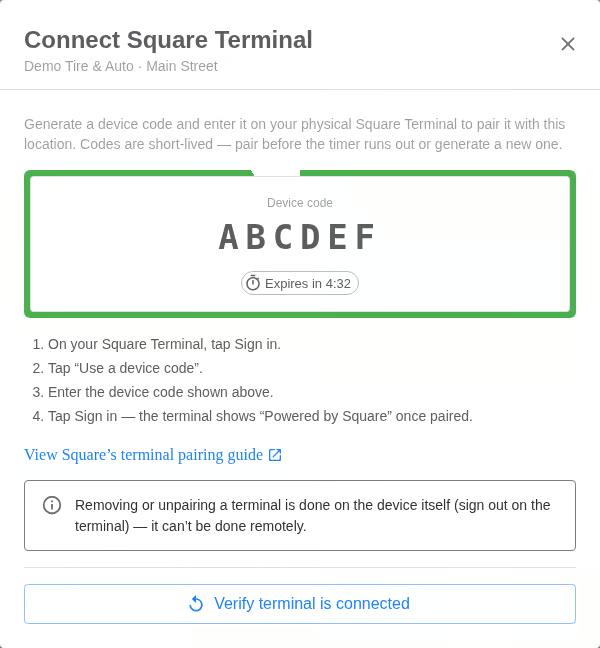
- On the terminal, tap Sign In. Use the terminal's screen from here.
- Tap "use a device code". It's below the Continue button, under the word "or". You have to pick this option - signing in with an email and password won't work, because the device code is what ties this terminal to your TireTutor store.
- Enter the code from TireTutor. The screen reads "Sign in with a device code." Type the code exactly as your Settings page shows it.
- Tap sign-in. The terminal shows "Powered by Square" once it's paired.
- Back in TireTutor, choose Verify terminal is connected. This confirms TireTutor can see the device.
✅ You see "Terminal paired to this location." If you instead see "No paired terminal found yet," finish the steps on the terminal and choose "Verify terminal is connected" again.
Note that codes are short-lived. If the timer runs out before you finish typing, the code is marked expired. You'll need to choose "Generate a new code" and start the terminal steps again. Nothing is broken - you just need a fresh code.
How to set up a terminal that's already signed in
When: The terminal was used at the shop before, but was paired with a different Shop Management System, or it was used by another shop, location, or owner and it does not show the sign-in screen.
Your existing setup won’t work as is. A terminal can only be signed in to one place at a time, and you can’t sign it out remotely from TireTutor. It has to be done on the device.
-
On the terminal, tap More. It’s the last tab in the row along the bottom of the screen.
- Scroll to the very bottom and tap, "Sign out <your business name>". It's the small link below the Customize button, past Settings - and it carries your business name rather than reading just "Sign out". DO NOT tap Switch location directly beneath it.
- Choose where to sign out. The terminal asks "Where do you want to sign out?" and gives you two options.
- Leave "This device only" selected. It's chosen for you already. Keep it.
- Tap the red "Sign out" button. It's at the top right of that screen. The terminal signs out and returns to Square's sign-in screen.
- Tap "Sign in" then "Use a device code." Youre back at the same screen a new temrinal starts on.
- Generate a code in TireTutor and enter it. In Settings --> Integrations, choose "Connect Square terminal." Type the code on the terminal, tap "Sign in", then return to TireTutor and choose "Verify terminal is connected."
- Confirm it can take payment. Follow "Confirm the terminal is ready - pairing along doesn't mean the terminal can charge a card yet.
❌ Don't choose Sign me out of all devices. That signs out of every device using these Square credentials - so if your shop runs more than one terminal, the others stop taking payments too.
Confirm the terminal is ready
When: You've just paired a terminal, or a payment won't go through on a device you expect to work.
Open settings --> Integrations, then choose "View terminals" in the Square panel. The summary next to it counts your devices and how many are available.
Look for your terminal with Status Showing "Available". That's the state that means it can take a card right now. A terminal that paired successfully but reads "offline" cannot.
| Column | What it tells you |
|---|---|
| Device name | The name the terminal reports, and its Square device ID |
| Connection | Device code means the terminal was paired to this store with a code from TireTutor. Only terminals paired that way appear in this list — a device signed in to Square with an email and password won’t show up here at all |
| Status | Available means it can take a payment right now. Offline means it can’t, usually because it’s powered off or off the network — though Square also reports Offline when it has no current information about the device |
| Square location | The location the device is bound to |
| Paired | When it was signed in |
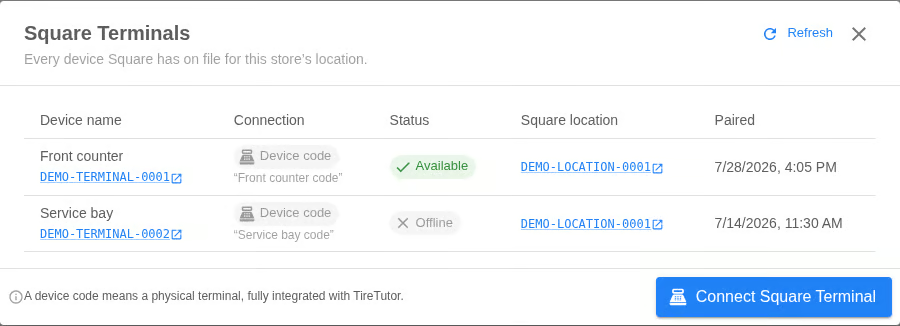
This screenshot shows two paired devices - one available and one offline.
Just powered on the terminal? Choose "Refresh" in the dialog. Square takes a moment to report a device as available.
If the terminal reads "Available", it's ready to take a card. If it doesn't, the next section covers why.
When a terminal still won’t take paymentsTerminal problems and connection problems look the same from the work order. To tell them apart, choose Connection health in the Square panel — it checks your Square connection and tells you what’s missing.If Connection health comes back clean and the terminal still won’t charge a card, work through these:
- Someone is signed in to the Square Point of Sale app on the terminal. A terminal signed in to Square’s own app can’t take a TireTutor payment, even though it still shows in View terminals. On the terminal, sign out of that app, then pair it again with a device code.
- The terminal shows
Offline. Check it’s powered on and on your Wi-Fi, wait a moment, then choose Refresh in View terminals. Square takes a little time to report a device as available. - The row is flagged
Signed into a different Square location. Sign it out on the device and pair it again — the second recipe covers this. - The terminal isn’t in the list at all. Only terminals paired with a TireTutor device code appear. If someone signed this one in to Square with an email and password, sign out on the device and pair it with a code instead.
Still stuck? Send your TireTutor contact the terminal’s device name and what Connection health reported — that’s what they need to look into it.