
Step 1: Opening the Tire Catalog
Out-the-door pricing lives in the tire catalog, so start there by searching for the tire you need.
If you're used to searching for tires in the inventory module, use the tire catalog for quoting instead. The inventory module matches searches exactly and is built for tracking stock, not for building customer quotes.
Step 2: Turning On the Out-the-Door Toggle
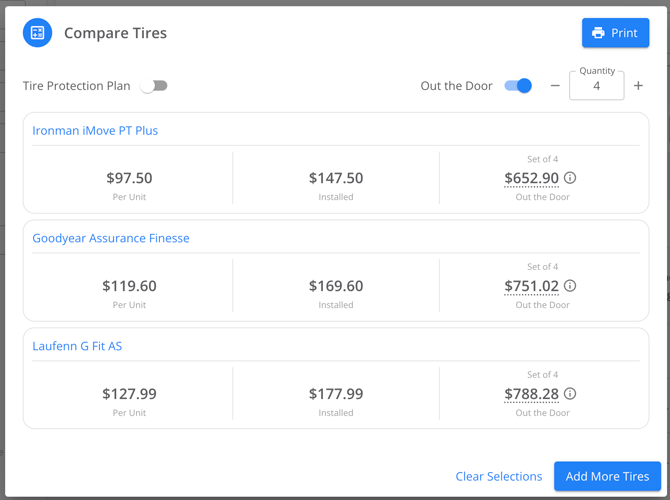
With your search results on screen, select the ones you want to present to your customer, then click on "Compare Quote Price". The toggle is automatically positioned for the out the door pricing.
Step 3: Reading the Out-the-Door Breakdown
With out-the-door pricing toggle on, each result shows base price, installation, state tire taxes, and sales tax, along with the total.
Step 4: Printing a Quote with Out-the-Door Pricing
When you print from the tire catalog with out-the-door pricing on, the printout includes an additional column showing the final price for each tire.
Step 5: Confirming Your Tax and Markup Settings
Out-the-door pricing calculates from the tax rates and markups configured on your account, so accurate settings produce accurate quotes. Review your pricing configuration and use the preview tool to see exactly what a customer-facing price will look like before you quote from it.