
Step 1: Creating a Price Group
Head to your settings, and then click on "Tire Markups". Find "pricing configurations" in the upper right and choose "Add price group". Open your price group settings and create a new group. Name it for the customer type it serves — common examples are military, friends and family, wholesale, employee, and government pricing.
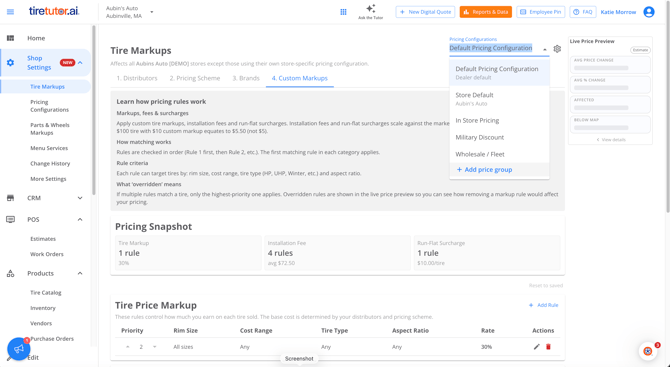
Step 2: Setting the Rules for a Price Group
Within a price group, configure the pricing rules that apply to customers in that tier. You might set a lower margin for a wholesale group, or add a fee for oversized tires.
If you want to limit which brands appear for a price group, remove the brands you don't want. Those brands will be excluded from the catalog while that price group is active.
If you disable a distributor source within a price group, the system recalculates prices based on the remaining active sources. Disabling a source does not immediately remove those products from your search results.
Step 3: Previewing Your Price Group Before You Use It
Before quoting from a new price group, use the preview tool in your pricing settings to see the prices it produces. Checking the preview first lets you catch a markup that's set higher or lower than you intended before a customer sees the number.
Step 5: Applying a Price Group While Quoting
Open the tire catalog and search for the tire you need, then select the price group you want to apply The unit price in your results updates to that group's pricing. Once you select a price group, you'll notice that the AI sell price column adjusts to show the price group you selected.
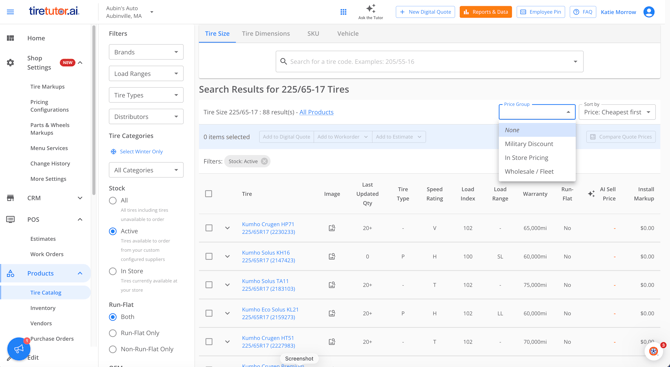
Price groups adjust unit pricing only. Installation markups are not affected and will continue to use your standard configuration.
Step 5: Understanding How Price Groups Affect In-Store and Online Pricing
Price groups apply to in-store quoting and do not change the prices customers see online.
Your store-level default pricing configuration works differently: it applies to both in-store and online channels. If a store hasn't set up its own default configuration, the system falls back to your dealer-level configuration for all channels.
Because store defaults affect both channels, review the impact on your online pricing before you change a store-level default.
You can now create pricing tiers for your regular customer types and apply them while you quote, without recalculating prices by hand.