
Open a work order and look at the panel of actions down the right-hand side of the page. Send Invoice to Customer sits directly above Process Payment, and Process Payment is the last action on the page — nothing appears below it.
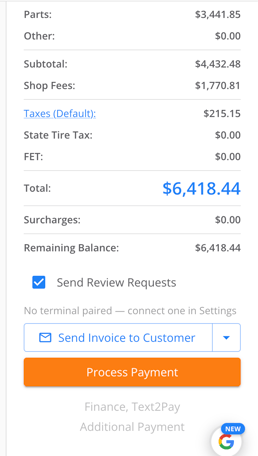
That order is deliberate. The actions run down the panel in roughly the order a job moves through the counter, and checkout sits at the bottom as the end of the page, so the two things you reach for when a job is finished are next to each other.
On an estimate, the same button reads Send Estimate to Customer and is the bottom action on the page. The label follows the order type.
If you have been using the old Finance, Text2Pay / Additional Payment button, that button has been retired. Send Invoice to Customer and its dropdown now cover the same job.
Step 2: Texting the Invoice Link to Your CustomerOn the work order, open the dropdown on Send Invoice to Customer and choose the option to text the invoice link. The customer receives a text message with a link to their invoice, which they can open on their phone and pay from.
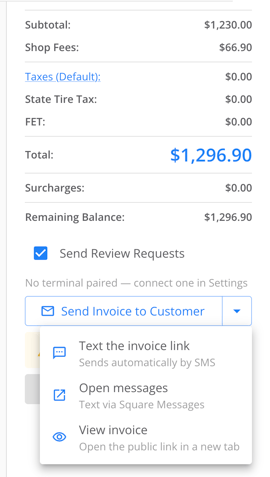
The link is unique to that one order, so the customer doesn't need a login or an account to open it. On an estimate, the same option sends the estimate link instead, which is useful when a customer wants to look at the numbers before approving the work.
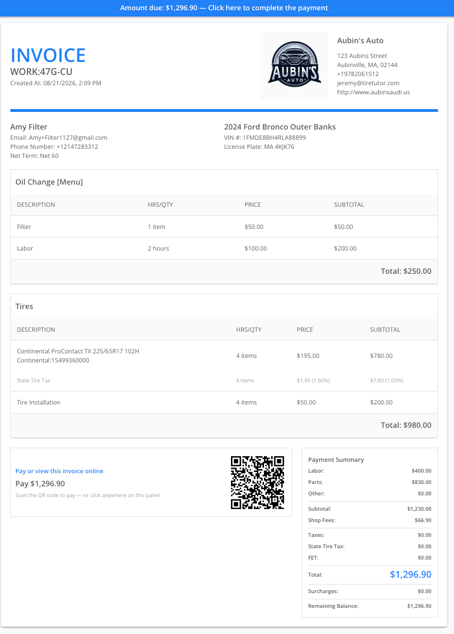
Step 3: Letting a Customer Pay from a Printed InvoicePrint the invoice as you normally would. The printout carries a scan-to-pay code, so a customer holding the paper copy can scan it with their phone camera and land on the same payment page the texted link opens.
This is the one to reach for when the customer is standing in front of you but would rather pay from their own phone, or when you're handing an invoice to someone picking up on behalf of somebody else who is paying. You can see exactly what the customer sees by clicking on "View Invoice".
Step 4: Understanding What the Customer Sees and How They Can Pay
When the customer opens the link, they see their invoice — the same line items and totals you see on the order — with payment options underneath.
They can pay by card or directly from a bank account, and they can use Apple Pay, Google Pay, or Cash App Pay if they have those set up on their phone. They complete the payment themselves, so no card number is read out over the phone or written down at the counter.
The payment comes back through your Square account and posts against the order the same way any other Square payment does.
Step 5: Getting Square Set Up FirstOnline payment runs through your own Square account. Until your Square setup is finished, the send and payment actions on the work order appear locked, and the payment options won't show on the invoice your customer opens.
If you see the locked state, finish your Square setup and the actions become available. If you aren't sure where your setup stands, contact your customer success representative.
You can now send a customer their invoice by text, print an invoice they can pay by scanning, and let them pay by card, bank account, or a phone wallet without coming back to the shop. Everything on this page works from the work order you already have open, and the payment lands in the same place your counter payments do. If you'd like an option you don't see, contact your customer success representative.